Installing Inter Font on Windows takes about two minutes. The only tricky parts are choosing the right files from the ZIP and making sure older copies do not get in the way. This guide covers Windows 10 and Windows 11, and the steps match the official help file that ships inside Inter 4.1.
Before you start
You need:
- Windows 10 or Windows 11
- The official
Inter-4.1.zip(33.7 MB) from the GitHub release - Administrator rights if you want to install for all users (recommended)
If you have not downloaded Inter yet, see Download Inter Font or use the button in our download section.
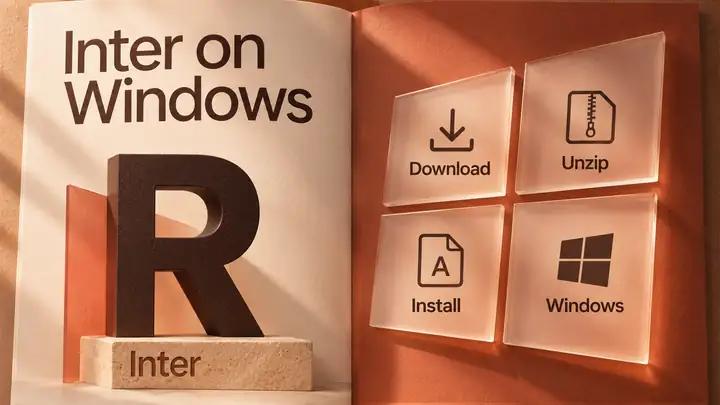
Step 1: Extract the ZIP
Windows can open ZIP files without extra software, but installing fonts directly from inside a ZIP is unreliable. Extract it first:
- Find
Inter-4.1.zipin your Downloads folder. - Right-click it and choose Extract All…
- Click Extract. A folder called
Inter-4.1opens.
Step 2: Pick the right files
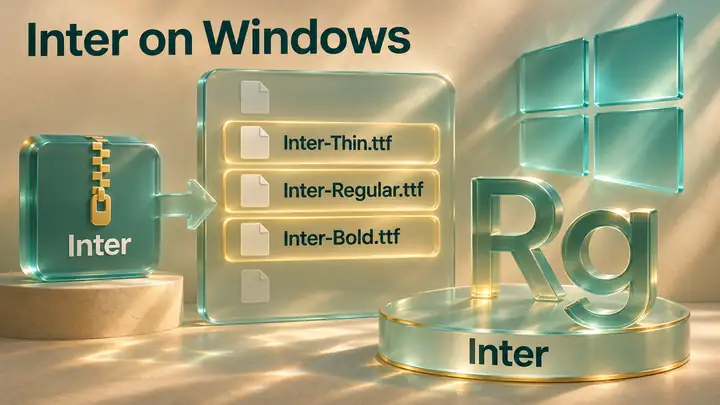
The extracted folder contains many files. You only need three of them:
| File | What it is |
|---|---|
Inter.ttc |
Every static style of Inter and Inter Display, with TrueType hints |
InterVariable.ttf |
The upright variable font |
InterVariable-Italic.ttf |
The italic variable font |
You do not need the web/ folder (that is for websites) or the extras/ folder (alternative formats). Installing the loose files in extras/ttf as well as Inter.ttc would create duplicates.
Step 3: Install for all users
- Hold Ctrl and click the three files to select them.
- Right-click the selection.
- Choose Install for all users. On Windows 11, this may sit under Show more options.
- Approve the administrator prompt.
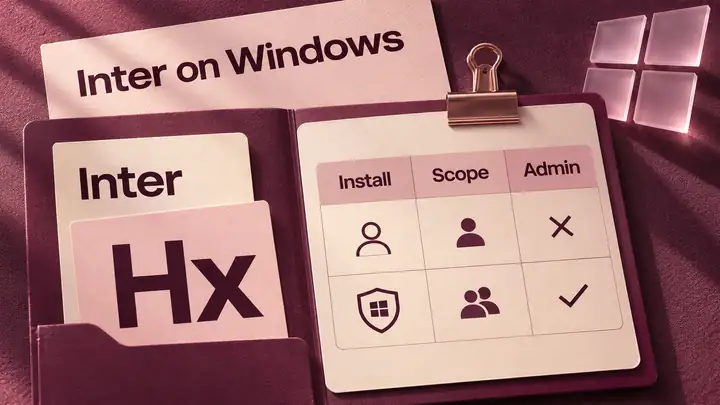
The official help file recommends "Install for all users" because some software only looks for fonts in the system-wide folder, C:\Windows\Fonts. If you choose plain Install, Windows puts the fonts in your personal folder (%LOCALAPPDATA%\Microsoft\Windows\Fonts), which works for most modern apps but not all.
Alternative: drag and drop
You can also open C:\Windows\Fonts in File Explorer and drag the three files into it, or open Settings → Personalization → Fonts and drop them on the "Drag and drop to install" area. Dragging into C:\Windows\Fonts installs for all users; the Settings drop area installs for your account.
Step 4: Restart your apps
Apps read the font list when they start. Close and reopen Word, PowerPoint, Excel, Figma, Photoshop or your browser before looking for Inter. You do not need to restart Windows.
Step 5: Check the installation
Open Settings → Personalization → Fonts and search for "Inter". You should see three families: Inter, Inter Display and Inter Variable. Power users can check from PowerShell:
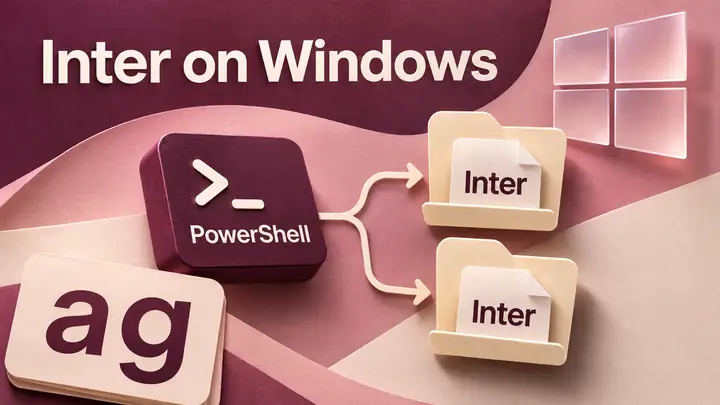
If the files appear in either folder, Windows has them.
Get the complete Inter 4.1 family — free, no sign-up, direct download.
Using Inter in Windows apps
- Word and PowerPoint: select text, open the font box and type "Inter". Pick Inter for body text and Inter Display for big headings. See our Word and PowerPoint guides.
- Figma desktop app: Figma lists local fonts automatically. Inter is also built into Figma, so you may see it there even before installing.
- Adobe apps: Photoshop, Illustrator and InDesign all see installed fonts after a restart. They support the variable font's weight slider.
- Browsers: websites use their own web fonts, so installing Inter does not change how sites look unless they ask for a locally installed "Inter".
Why install both the static and variable fonts?
| Situation | What helps |
|---|---|
| Office apps showing only Regular and Bold | Static Inter.ttc gives every named weight |
| Design apps with weight sliders | InterVariable.ttf gives any weight 100–900 |
| Sharp text on low-DPI monitors | Hinted static fonts work with ClearType |
| Big headlines | Inter Display (static) or the variable opsz axis |
The variable font has no TrueType hints, while Inter.ttc does. On standard-resolution monitors, hinting can make small text crisper under ClearType. On high-DPI laptop screens the difference is minor.
Troubleshooting
Inter does not appear in an app. Close the app fully (check the system tray) and reopen it. If it still does not show, reinstall using Install for all users.
I see two copies of Inter. You probably have an older version installed. Open Settings → Personalization → Fonts, search for Inter, open each family and click Uninstall. Then install 4.1 again. The official notes say to remove previous Inter files before installing new ones.
"The file is not a valid font file." You probably tried to install a file from inside the ZIP without extracting it, or the download was interrupted. Download again and check the size is 33,707,794 bytes.
Text looks blurry at small sizes. Make sure the static Inter.ttc is installed and pick Inter rather than Inter Variable in apps where you set small text. Running the ClearType Text Tuner (search "Adjust ClearType text") can also help.
Only some weights appear in Word. Office apps group weights differently. Look for entries like Inter Medium or Inter SemiBold as separate fonts in the list.
How to update or uninstall Inter on Windows
To update, uninstall the old Inter, Inter Display and Inter Variable families from Settings → Fonts, then install the new files. To uninstall completely, delete those families the same way. Apps that are open may lock font files; close them first.
Works on
These steps were checked against the official Inter 4.1 help file and the ZIP's real contents. They apply to Windows 10 and Windows 11, on both x64 and ARM devices, because font installation works the same way on both.
Next steps: try different weights in our live type tester, learn the Inter weights, or set up Inter in PowerPoint.
Installing on many PCs at once
If you look after several Windows machines, for example in an office or a classroom, installing by hand gets old quickly. Two approaches are common:
- A shared folder and a short checklist. Put the three files on a network share with a one-page checklist based on the steps above. This works for small teams.
- Your device management tool. Organizations using Microsoft Intune, Group Policy or similar tools usually deploy fonts by copying them to
C:\Windows\Fontsand registering them in the registry underHKLM\SOFTWARE\Microsoft\Windows NT\CurrentVersion\Fonts. Follow your tool's own documentation for this.
Whatever method you choose, deploy the same version everywhere and keep the LICENSE.txt file with your copy of the fonts. The SIL Open Font License explicitly allows redistribution inside an organization.
Per-user vs all-users folders explained
| Folder | Who sees the fonts | Typical apps that need it |
|---|---|---|
C:\Windows\Fonts |
Every account on the PC | Older software, some print and CAD tools |
%LOCALAPPDATA%\Microsoft\Windows\Fonts |
Only your account | Most modern apps, including Office 365 |
If one specific program cannot see Inter while others can, the per-user folder is the most likely reason. Reinstalling with Install for all users fixes it.
A quick test after installing
Open Notepad, choose Format → Font, and scroll to Inter. The preview box shows a sample in the font, which confirms that Windows has registered it. Then try the same in WordPad or Word to confirm that rich-text apps see every weight. If Notepad sees Inter but another app does not, the problem is that app's font cache, and a full restart of the app (or of Windows, as a last resort) clears it.
Quick reference
| Task | Where |
|---|---|
| Install for everyone | Right-click → Install for all users |
| Install for you only | Right-click → Install |
| See installed fonts | Settings → Personalization → Fonts |
| Remove a family | Open the family in Settings → Uninstall |
Frequently asked questions
How do I install Inter Font on Windows 11?
Extract Inter-4.1.zip, select Inter.ttc, InterVariable.ttf and InterVariable-Italic.ttf, right-click and choose Install for all users (under Show more options on Windows 11). Then restart your apps.
Should I choose Install or Install for all users?
Install for all users is recommended by the official help file, because some software only reads fonts from C:\Windows\Fonts. It needs administrator rights.
Why is Inter not showing in Word after installing?
Close Word completely and reopen it. If it still does not appear, reinstall the fonts using Install for all users.
Which Inter files do I need on Windows?
Only three: Inter.ttc, InterVariable.ttf and InterVariable-Italic.ttf. The web and extras folders are not needed for desktop use.
How do I remove an old version of Inter on Windows?
Open Settings, Personalization, Fonts, search for Inter, open each Inter family and click Uninstall. Then install the new version.
Does Inter work on Windows 10?
Yes. The same steps work on Windows 10 and Windows 11.
Can I install Inter without administrator rights?
Yes. Right-click the fonts and choose Install instead of Install for all users. Windows puts them in your personal font folder, which most modern apps can read.
Should I install the files in the extras folder too?
No. Inter.ttc already contains every static style. Installing extras/ttf as well creates duplicate entries in your font menus.