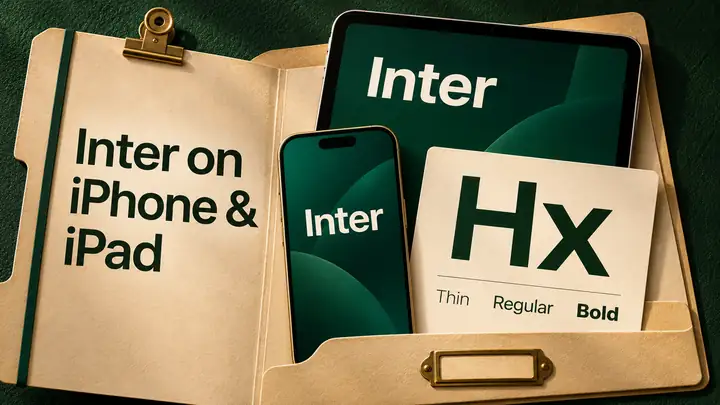
Since iOS 13, iPhone and iPad have supported custom fonts. You cannot install a TTF by tapping it the way you can on a Mac, and you cannot change the system font, but with the right app you can use Inter Font in Pages, Keynote, Numbers, Mail and many third-party apps. This guide explains the methods honestly, including the limits.
What works and what does not

- Works: Inter in apps that support custom fonts, such as Pages, Keynote, Numbers and Mail, plus many design apps.
- Works: websites that use Inter as a web font, in Safari and every other browser.
- Does not work: changing the iPhone or iPad system font. Apple does not allow it.
- Does not work: tapping a TTF file to install it directly. iOS needs an app to do the installation.
Step 1: Download Inter on your device
In Safari, open the official release or the download button in our download section. Safari saves Inter-4.1.zip (33.7 MB) to the Downloads folder in the Files app. In Files, tap the ZIP once to extract it.
Step 2: Choose a font installer app
iOS installs fonts in two different ways, and installer apps use one or the other:
- The iOS font API. Apps such as Apple-approved font providers register fonts with the system. Installed fonts then appear in Settings → General → Fonts.
- Configuration profiles. Apps such as iFont or the open-source Fontcase wrap your TTF files in a configuration profile that you install in Settings. These appear under Settings → General → VPN & Device Management (older versions say Profiles).
Both methods use files you supply, so Inter's OFL licence is respected. Choose an app with good reviews and a clear privacy policy.
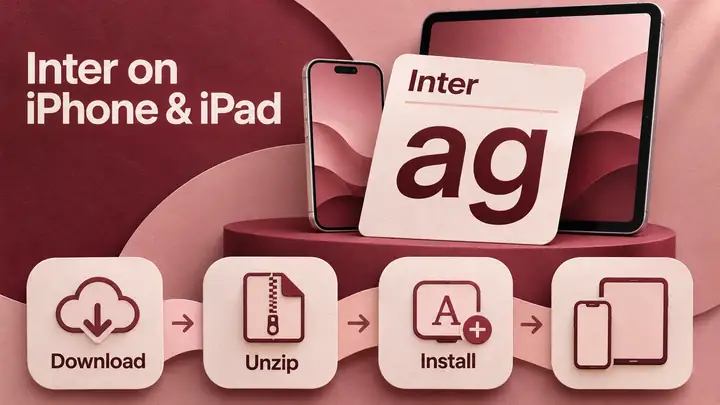
Step 3: Install Inter (profile method example)
The exact buttons differ by app, but the flow is similar:
- Open your installer app and choose Import.
- Browse to the extracted
Inter-4.1folder in Files. - Pick the fonts you need. For best compatibility, choose static files from
extras/ttf/, such asInter-Regular.ttf,Inter-Medium.ttf,Inter-SemiBold.ttfandInter-Bold.ttf, plus their italics if you need them. - Tap Install. The app downloads a profile and tells you to open Settings.
- Open Settings. Tap Profile Downloaded near the top.
- Tap Install, enter your passcode, and confirm.
The font profile contains only the font files. It is still wise to read what any profile says before you install it.
Get the complete Inter 4.1 family — free, no sign-up, direct download.
Step 4: Use Inter in your apps
Quit and reopen the app you want to use:
- Pages, Keynote, Numbers: select text, tap the paintbrush icon, tap the font name and scroll to Inter.
- Mail: when composing, tap Aa in the toolbar and choose the font.
- Design apps: many have their own font import as well, which adds Inter only to that app.
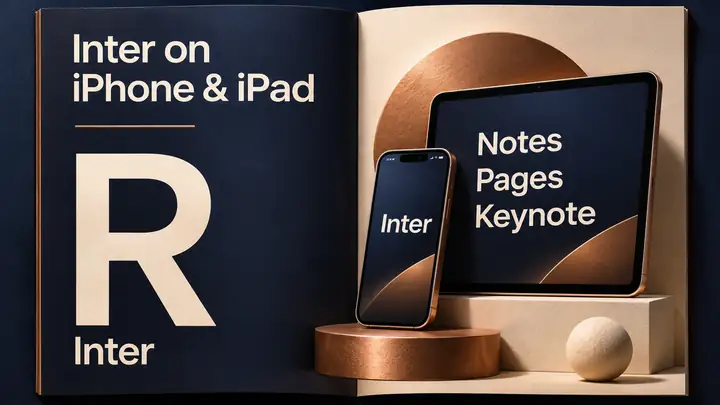
Which files to pick on iPhone and iPad
| File | Use on iOS |
|---|---|
extras/ttf/Inter-*.ttf |
Best compatibility, one style per file |
Inter.ttc |
Contains every style, but large (13 MB) and not every installer accepts TTC |
InterVariable.ttf |
Works in apps with variable font support |
Installing the four to six styles you actually use keeps things tidy. Most documents only need Regular, Medium, SemiBold and Bold.
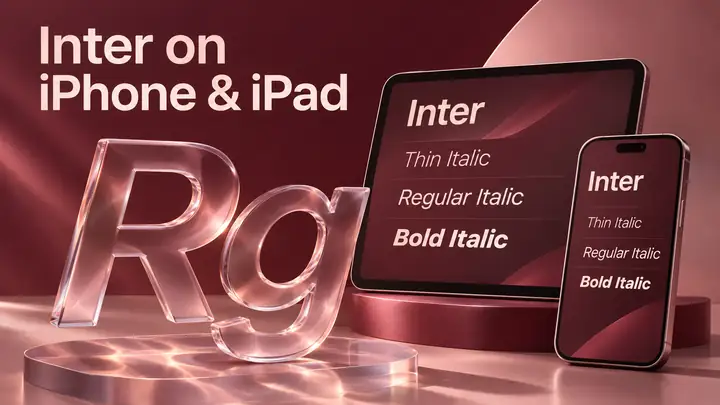
Removing Inter from iOS
- Profile method: Settings → General → VPN & Device Management, tap the Inter profile and tap Remove Profile.
- Font API method: Settings → General → Fonts, tap Inter and remove it, or delete the installer app.
Limits to know
| Limit | Why |
|---|---|
| No system-wide font change | iOS does not allow replacing the system font |
| Only apps that support custom fonts | Each app decides whether to show installed fonts |
| Shared documents may change font | Recipients without Inter see a substitute |
The last point matters for collaboration. If you send a Pages or Keynote file to someone without Inter, their device substitutes another font. Exporting to PDF keeps your layout exactly.
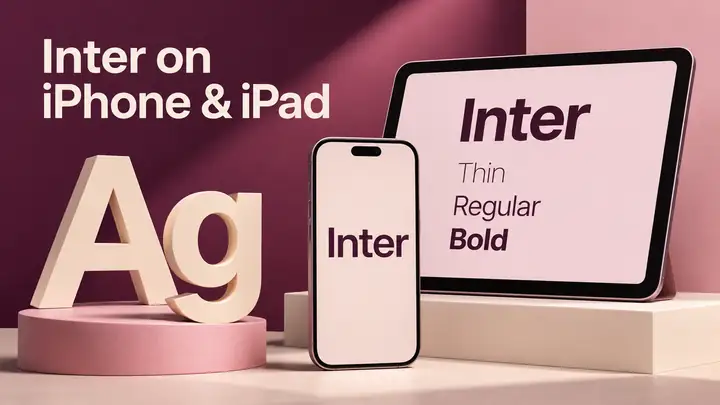
Inter on the web on iOS
Any website that uses Inter as a web font displays correctly in Safari, Chrome or Firefox on iOS with no installation. Developers can self-host Inter using our CSS guide.
Troubleshooting
Inter does not appear in Pages. Force-quit Pages (swipe it away in the app switcher) and reopen it. Confirm the font is listed in Settings → General → Fonts or as a profile.
"Profile installation failed." Some managed (work or school) devices block profiles. Ask your administrator, or use an app that imports fonts directly.
Weights look wrong. Use static TTFs from extras/ttf/ instead of the variable file.
Profile security, explained simply
Configuration profiles are a standard Apple mechanism for adding settings to a device, and fonts are one of the things they can carry. A font profile adds only fonts. Still, profiles can contain other settings in general, so good habits help:
| Habit | Why |
|---|---|
| Use well-known installer apps | Fewer surprises in what the profile contains |
| Read the profile summary in Settings before installing | It lists what the profile adds |
| Remove profiles you no longer need | Keeps Settings tidy and reduces risk |
| Avoid profiles from unknown websites | They may contain more than fonts |
If your iPhone or iPad is managed by work or school, check with your administrator before installing profiles, as some organizations block or monitor them.
Getting the files onto the device
There are several ways to get Inter's files onto an iPhone or iPad besides downloading in Safari:
- AirDrop the TTF files from a Mac; they land in the Files app.
- iCloud Drive: put the fonts in a folder on your Mac and open it in Files on the device.
- Email a small selection of TTFs to yourself and save the attachments to Files.
Keep the selection small. Most installer apps let you pick files one by one, and installing every one of the 36 static styles is rarely necessary.
Design apps on iPad
Many iPad design and illustration apps let you import fonts directly inside the app, which adds Inter to that app only without a profile. That route is often simpler if you only need Inter in one app. Check the app's own documentation for its font import option, and remember to export with fonts embedded or outlined when you share your work.
When you only need Inter on the web
If you build or edit websites from an iPad, you do not need Inter installed on the device. Sites that self-host Inter display it in Safari automatically, and our type tester runs on iPad and iPhone too.
Which apps support custom fonts?
Apple's own Pages, Keynote, Numbers and Mail support installed fonts. Many third-party writing, note-taking and design apps do too, but not all. If Inter does not appear in an app after installing it and restarting the app, that app probably uses only built-in fonts. In that case, check whether the app offers its own font import, or create your content in an app that supports custom fonts and export it.
Quick reference
| Task | Where |
|---|---|
| See API-installed fonts | Settings → General → Fonts |
| See font profiles | Settings → General → VPN & Device Management |
| Remove a profile | Tap the profile → Remove Profile |
Summary
You can use Inter on iPhone and iPad in Pages, Keynote, Mail and many other apps by installing it through a font installer app. You cannot change the system font. Download the official ZIP, import static TTFs into an installer app, approve the profile or font in Settings, and reopen your apps. For Android, see our Android guide.
Frequently asked questions
Can I install Inter Font on an iPhone?
Yes, through a font installer app. iOS 13 and later support custom fonts in apps such as Pages, Keynote, Numbers and Mail.
Can I change the iPhone system font to Inter?
No. iOS does not allow changing the system font. Inter can only be used inside apps that support custom fonts.
Where do installed fonts appear on iOS?
Fonts installed through the iOS font API appear in Settings, General, Fonts. Profile-based fonts appear under VPN and Device Management.
Which Inter files work best on iPad?
Static TTF files from the extras/ttf folder offer the best compatibility. Install only the weights you need.
Why does my Keynote file look different on another device?
The other device does not have Inter installed, so it substitutes another font. Export to PDF to keep the exact look.
How do I remove Inter from my iPhone?
Remove the font profile in Settings, General, VPN and Device Management, or remove it from Settings, General, Fonts, depending on how it was installed.
Can I AirDrop Inter fonts to my iPhone?
Yes. AirDrop the TTF files from a Mac; they arrive in the Files app, and you can open them in a font installer app from there.
Is installing a font profile safe?
Font profiles from well-known installer apps contain only fonts. Read the profile summary in Settings before installing, and avoid profiles from unknown websites.